
Preparing your CSV
What file to upload, how we find the email column, size limits, and what happens to duplicates and broken rows.
Updated October 7, 2026
The short version
Export your contacts from your email tool as a .csv file and upload it as it is. You don't need to tidy it up first.
File type
We accept CSV files only. If your contacts are in Excel or Google Sheets, save or download them as CSV first:
- Excel: File, Save As, then choose CSV UTF-8 (Comma delimited).
- Google Sheets: File, Download, Comma-separated values (.csv).
Then drop it on the Clean a list page:
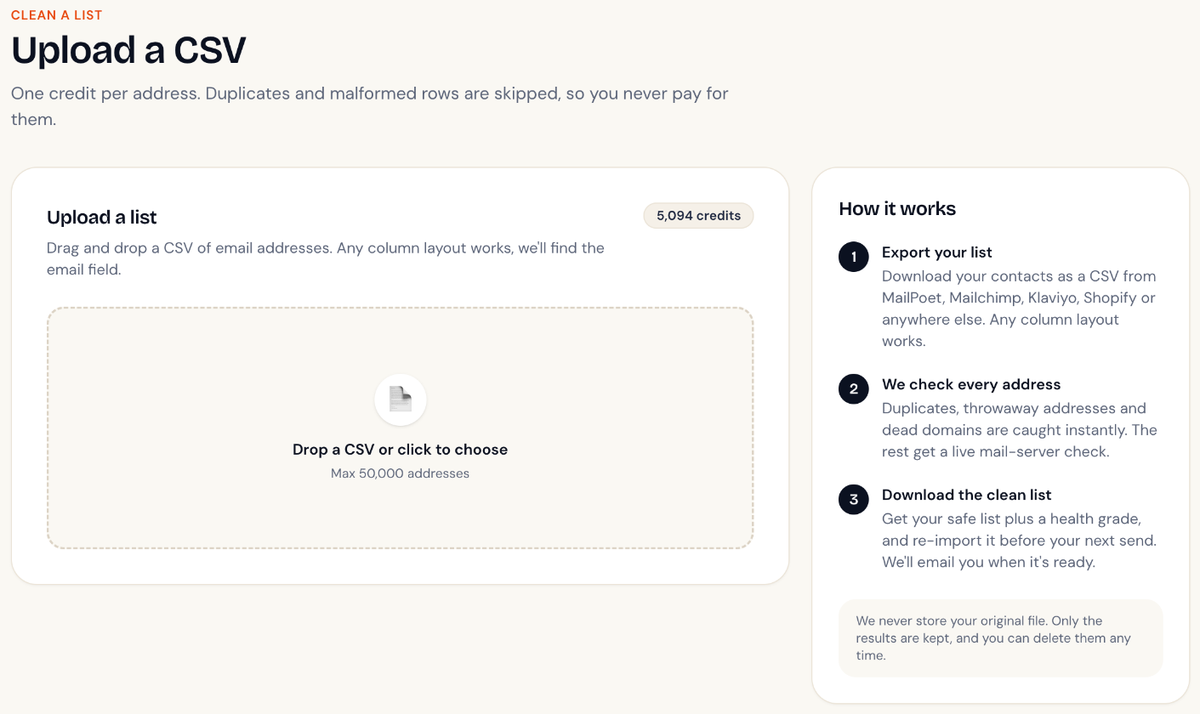
Which column we use
You don't have to rename anything. We look for a column called email, e-mail or something close like Email Address. If there's no header row, we pick the column that's full of email addresses.
If your file has name columns (first_name, last_name, First Name, Surname, or a single Name column), we keep the names so they're in your clean file too. Every other column is ignored and never uploaded.
Size limit
Up to 50,000 addresses per upload. For a bigger list, split it into several CSVs and upload them one after another.
Duplicates and broken rows are free
Before we charge anything, we remove:
- Duplicates: the same address more than once. We check it once.
- Malformed rows: values that aren't email addresses at all, like a blank cell or
john.smith.
You only use credits for the unique, properly formatted addresses left over. Your report shows how many of each we removed.
Free accounts
Until you buy your first credit pack, you can start up to 5 uploads in any 24 hours. Buying any pack removes the limit.
Didn't answer your question?
Email support@listbouncer.com or use the contact form. A real person replies.