
Removing bad addresses from your email tool
How to stop sending to the addresses we flagged as Will bounce, in MailPoet, Mailchimp, Klaviyo and other tools.
Updated October 7, 2026
Why not just import the clean list?
Importing your clean file adds and updates contacts, but it doesn't remove the bad ones. They're still in your email tool and will still get your next campaign. To stop that, you need to unsubscribe, suppress or archive them.
Start with the Will bounce file
On your report, find the Will bounce card in the results breakdown and click Download CSV. That gives you a file of just those addresses, with first_name, last_name and email columns. Then follow the steps for your tool below.
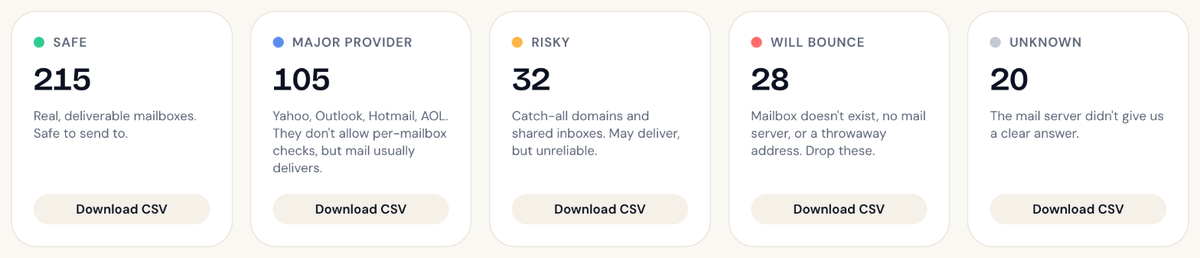
You can do the same with Risky or Unknown if you've decided to stop sending to those too.
MailPoet
- Go to MailPoet > Subscribers and click Import.
- Upload the Will bounce file.
- At the bottom of the import screen, set the status for new and existing subscribers to Unsubscribed.
- Finish the import.
MailPoet won't create duplicates. It updates the existing subscribers to Unsubscribed. Double-check that status before you import: MailPoet marks imported subscribers as confirmed unless you choose otherwise.
Mailchimp
Re-importing as unsubscribed doesn't work in Mailchimp, because imports don't change the status of contacts who are already there. Instead, either:
- Unsubscribe them: go to Audience > More options > Unsubscribe emails, paste the addresses (up to 3,000 at a time) and click Unsubscribe.
- Archive them: select the contacts, click Archive, type ARCHIVE and confirm. Archived contacts don't count toward your Mailchimp bill.
Mailchimp's unsubscribe guide · Archiving
Klaviyo
Suppress them. Suppressed profiles stay in your account, can't receive marketing email and don't count toward your plan.
- Open the file in a spreadsheet, delete the two name columns, and rename the
emailheader to Email. Save it as CSV. - Go to the Profiles tab, click View suppressed profiles, then Import and upload the file.
Suppression only covers email, not SMS.
Brevo
Import the file using Brevo's normal import, and turn on Blocklist your contacts from receiving your email campaigns before you click Confirm your import. Blocklisted contacts can't be un-blocklisted in bulk, so only use this file for addresses you're sure about.
ActiveCampaign
Go to Contacts > Import > Import from file, upload the file, and in Import Options choose Import as Excluded. Excluded contacts won't get campaigns or automation emails.
ActiveCampaign's exclusion guide
MailerLite
Import the file into a new group, open that group, select everyone, then choose Actions > Move to unsubscribed.
Kit and Shopify
Neither has a one-step "unsubscribe from a file" option.
- Kit: one way that works is to import the file with a tag (for example
will-bounce), open that tag, select all subscribers, then use ⋮ > Unsubscribe. Keep the file to just the email column, because blank columns in a Kit import can overwrite existing data. - Shopify: use the bulk editor on the affected customers to set Accepts email marketing to no.
If you're unsure, send us a message and we'll walk you through it.
Didn't answer your question?
Email support@listbouncer.com or use the contact form. A real person replies.